
Recipes are one of the most important roles an HMI can perform. The ability to quickly move data in and out of an HMI speeds up startup, everyday operations, and system maintenance. Fortunately, Monitouch HMIs have a robust recipe handling system that enables data to be transferred from both internal memory and external storage, such as a USB flash drive or integrated SD card reader.
In this blog, we cover the basics of setting up a simple recipe that loads values to individual internal memory addresses as part of an ongoing series on recipes with Monitouch HMIs.
For this demonstration, we will be utilizing Smart Editor with a TS4120i.
Utilizing Smart Editor Recipes
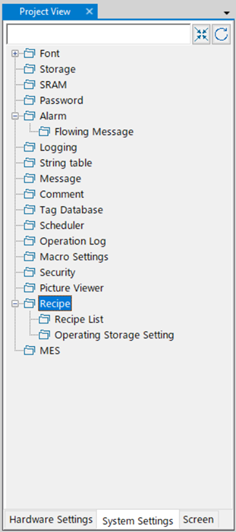
Alright, let’s get started by heading over to Project View and double-clicking on Recipe, as shown below.
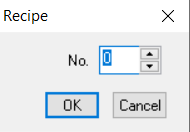
Click Ok to create a recipe:
You will now be presented with the recipe configuration screen:

Record-based transfer is for when you plan to have all your data in a single file and will only transfer the data in a single row or column from the designated file. For this blog, we will be using File-based Transfer. We will use a recipe selection switch, so File Name Designation is not necessary here. Let us now go to the next screen, File Format:

This screen allows you to designate whether the data is organized by row or by column, the specific data types, whether you have record names, titles, or the default device transfer points, which can be specified consecutively, individually, or consecutively after the top of the record.
For now, we will be removing the record name and changing the transfer target to $u200 to change it from the default address.
The next two screens, Recipe Data and Transfer Command, cover managing recipe files and conditioning recipe load and save actions. These will not be covered in today’s blog but keep an eye out for further details coming soon in future content.
Now, let’s move on to creating a recipe switch on Screen “0” by placing ten numerical displays starting with $u200. The recipe switch is set up with these settings:
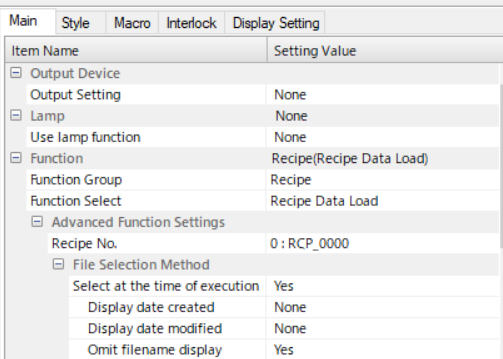
It does not require an output. Instead, Recipe Data Load is assigned to the function. Next step – select the recipe we created earlier and pick Yes for “Select at time of execution.” This will result in a special selection window to pop up, displaying all the recipe files available for selection.
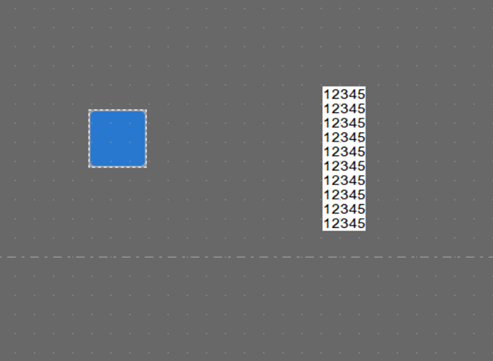
We can now open the emulator and select the switch we placed. Pulling up this window:
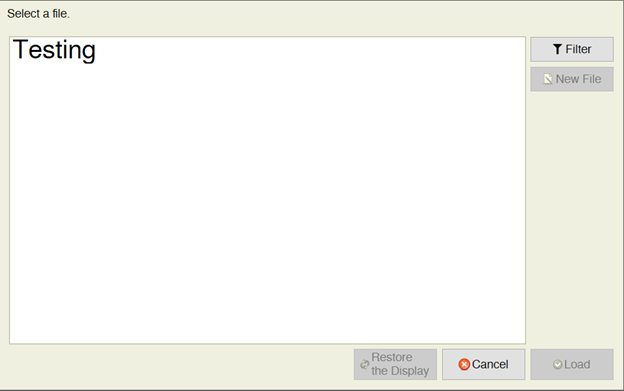
For this demonstration, we are utilizing a previously created CSV file named Testing. Important note, when using Excel to create a CSV be sure to save it as CSV and not a CSV UTF-8. The UTF-8 CSV adds new header information to the file that makes the first value impossible to read. We will now load the CSV file by selecting it and clicking Load.
The snippet below shows that the information from the CSV file has loaded into the internal memory addresses of the HMI.

Congratulations, you now know how to correctly set up a recipe that loads values to individual internal memory addresses utilizing a Fuji Monitouch HMI V-Series Smart Editor.
Thank you for reading our blog. To see this process in action, check out our video on YouTube. Interested in learning more? Be sure to subscribe to this blog to stay up to date on critical technology integration processes.
Still have questions?
We’re here to help! Contact the Live Automation Team anytime for expert troubleshooting and tailored solutions to keep your systems running smoothly.